For Principal, office admin · 15 min
Set up your school in SchoolOS
A new school is ready in an afternoon. The dashboard's setup checklist shows what is left and ticks each step off as you finish it.
adimata.com/schoolos/app
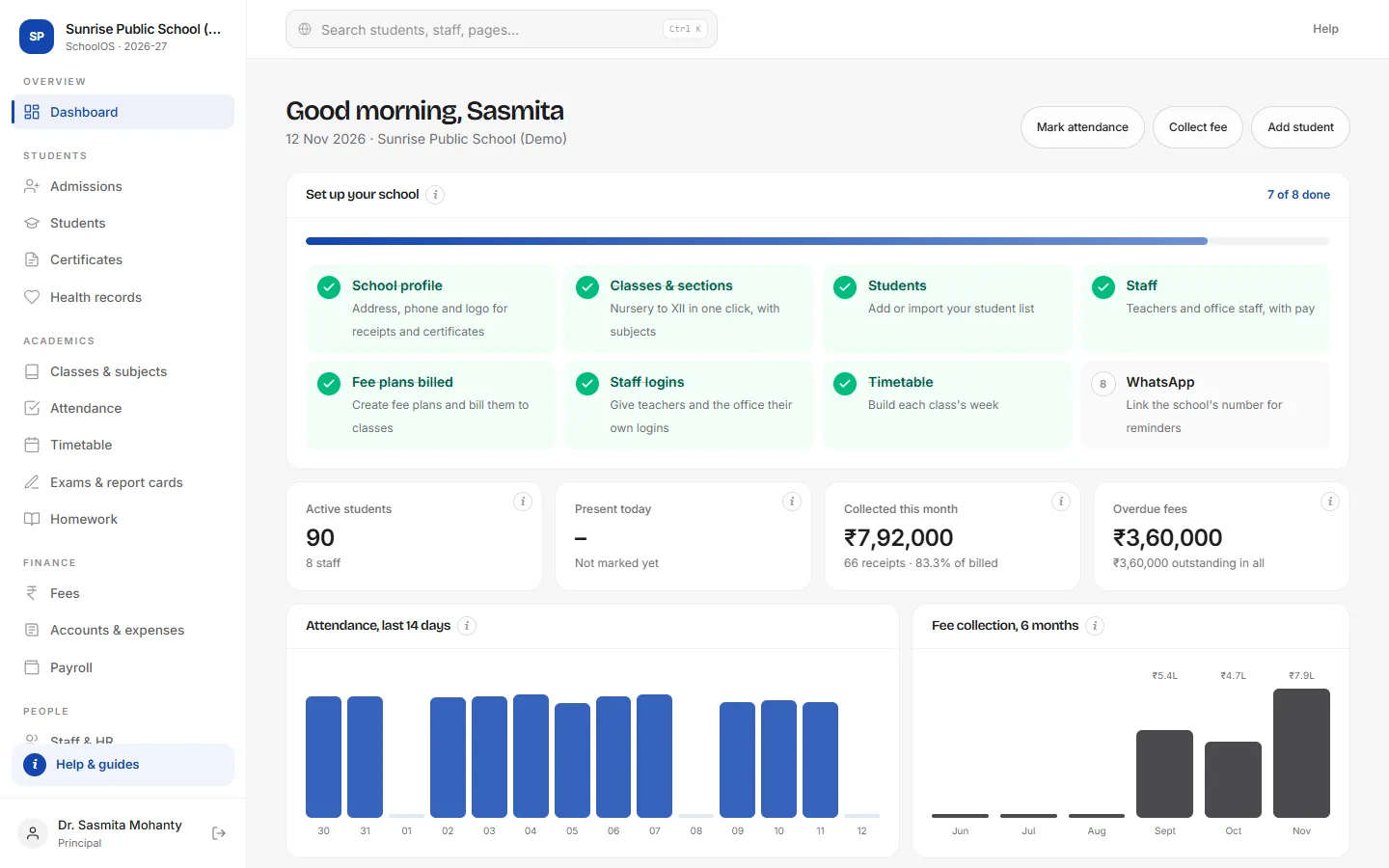
- 1Follow the checklistEvery step opens the right page. Steps tick themselves off from your real data, and the checklist disappears when everything is done.
- 2Start with the school profileAddress, phone and logo appear on receipts, ID cards and certificates.
- 3Create classes in one clickClasses & sections offers Nursery to XII with sections and typical subjects in one click. Rename or add sections later.
- 4Give staff their loginsTeachers and the office each get their own login and role, so everyone sees only what they need.
adimata.com/schoolos/app/settings
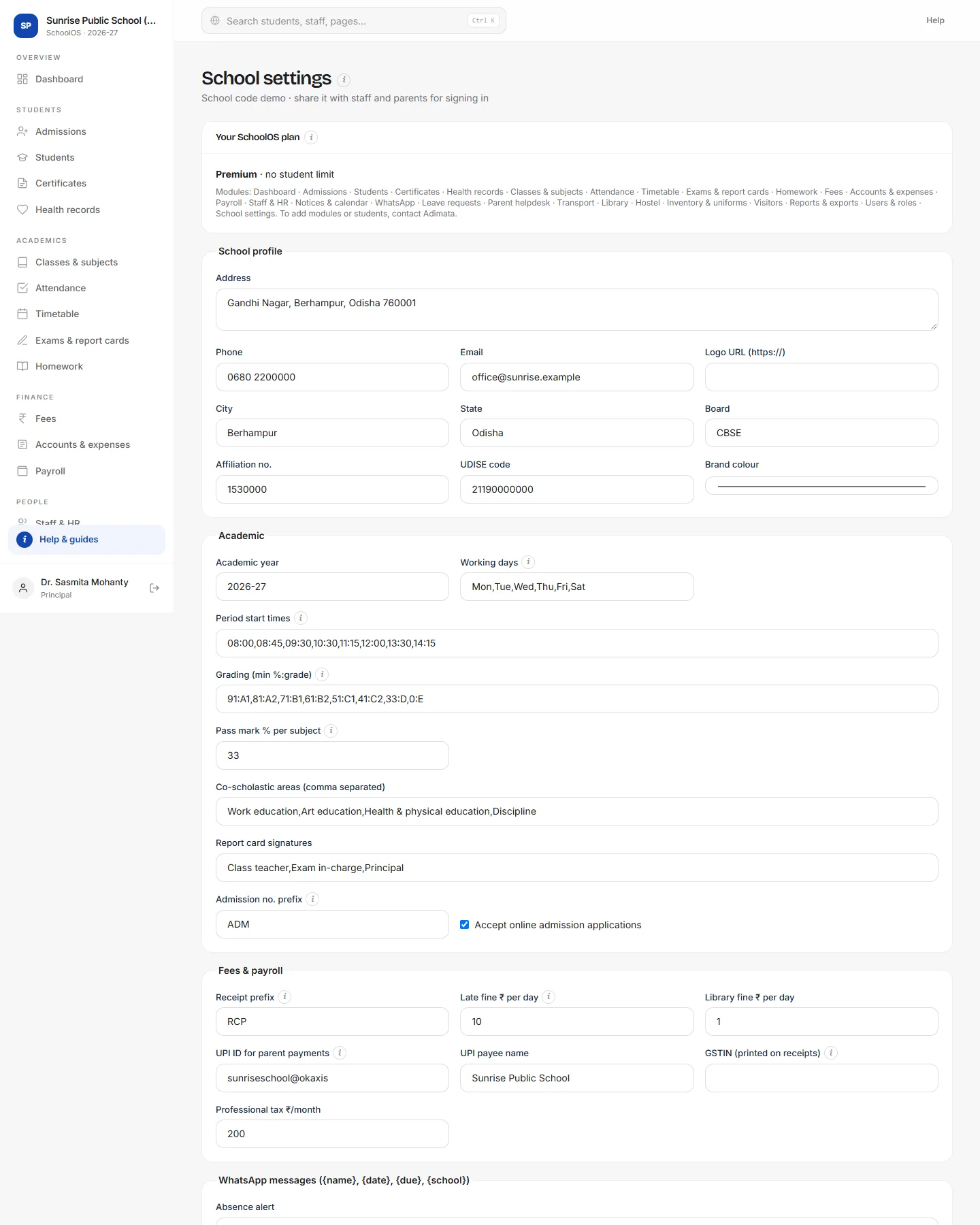
- 5Fill the school profileThese details print on receipts, certificates and report cards.
- 6Set the academic rulesAcademic year, working days, period times, grading and pass mark. The CBSE 9-point scale is already filled in.
- 7Add the fee rulesReceipt prefix, late fine per day and the UPI ID parents pay to.
- 8SaveChanges apply at once for everyone in the school.
Tips
- Use the i button next to any title or field for a short explanation.
- Import students from your existing Excel sheet instead of typing them (see the Students guide).
- Link the school's WhatsApp last, once parents' mobiles are in.